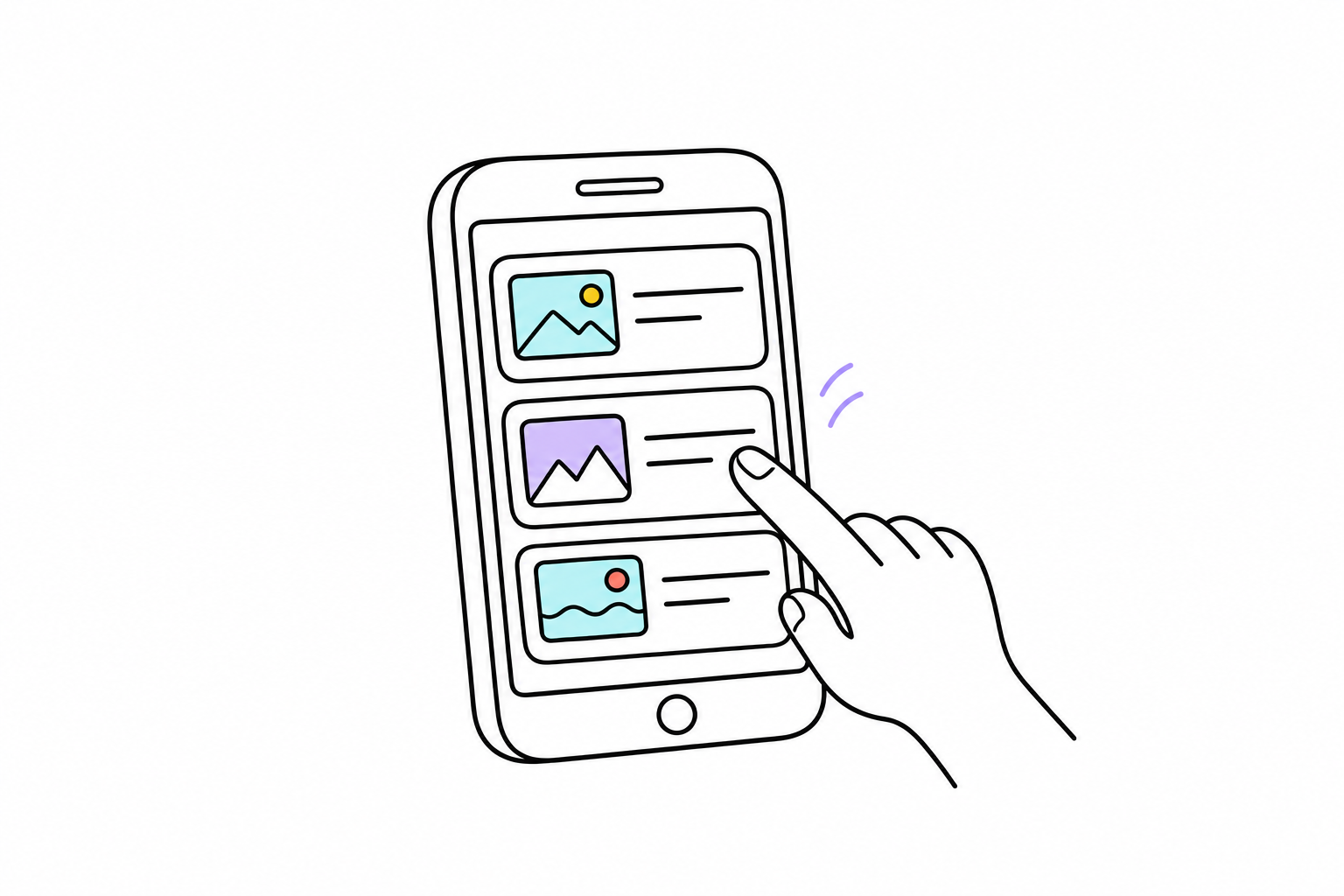
In the Google app or on google.com from a phone, a feed of articles appears below the search bar without the user typing anything. In this feed, called Discover, a recipe or a tip published on your site can be suggested to people who don’t know you yet. Before preparing articles for Discover, look at the conditions for appearing there and the limits of this source of visits.
Any page indexed by Google can appear in Discover with no special setting, but Google picks the articles in this feed based on each user’s interests. Discover visits are unpredictable. For a small business, they should remain an extra on top of other sources of visits.
Terms to know before you start
| Term | Meaning |
|---|---|
| Discover | The feed of articles and videos that Google picks for each user based on their interests and offers on mobile without a typed search |
| Indexed page | A page that Google has stored in its index, the list of pages it can show |
| Preview | The card that presents an article in Discover: its image, its title and the site’s name |
| og:image tag | A line in the page’s code that names the image to show when the page is shared or presented by Google |
| max-image-preview:large | A rule of the robots meta tag, in a page’s code: it allows Google to show a large image |
| Clickbait | A title or an image that exaggerates or hides the essential point to draw the click |
| Google Search Console | Google’s free tool that shows a site’s appearances in its results and in Discover |
| Impression | An appearance of an article in a user’s feed, counted when the article scrolls onto the screen |
| Manual action | A penalty decided by a person at Google and reported in Search Console |
Tell Discover apart from Google Search
Discover is a feature of Google Search. It shows each user content linked to the interests Google infers from their activity on the web and in apps1. Users find this feed in the Google app, on google.com from a phone and, on some Android devices, by swiping right on the home screen4.
In Search, Google ranks the pages that match the typed question, whereas in Discover it suggests articles on its own. The Search Console Discover report therefore contains no searches5. You can’t target any keyword in Discover: you publish an article and Google decides whom to show it to.
Google Search
A person types “tarte Tatin recipe” and Google ranks the matching pages.
The “Search results” report shows the typed search
Discover
The user doesn’t run any search: Google picks the articles based on their interests.
The “Discover” report only shows pages
Assess what Discover is worth to a small business
Google names sports, health, entertainment and lifestyle among the common topics in Discover. For this feed, it looks for unique stories or information, tied to current interests1.
For news media, this feed has become very important. NewzDash, a maker of tools for news publishers, analyzed more than 400 media outlets worldwide. At these outlets, Discover’s share of visits from Google on mobile rose from 37% in 2023 to 68% at the end of 20253.
NewzDash published neither its list of media outlets nor its method, which makes this figure a mere order of magnitude. The count only covers news media, whose publishing pace far exceeds that of a small business. No published study has measured Discover’s share of a small business’s visits.
We think Discover only matters to a small business if it regularly publishes articles, recipes or tips on a topic that interests the general public. A caterer who publishes recipes or a landscaper who gives seasonal tips stands a chance. An accounting firm that presents its services has almost no chance of appearing in this feed, which costs it no customers.
Discover readers open an article out of curiosity, without looking for a provider. In our view, these readers’ visits turn into quote requests less often than visits from a search.
Meet Google’s conditions to get into Discover
Google sets two conditions for getting into Discover: the page must be indexed and follow the Discover content policies1. The Search Console URL Inspection tool tells you whether a page is in Google’s index.
In these policies, Google forbids misleading previews, those that promise information missing from the article. It requires news sites to show clear dates and bylines, information about the author and the publisher, and contact details6. A site that breaks the policies can receive a Discover-specific manual action, reported in Search Console under “Security & Manual Actions”1.
Google states that older content can appear in Discover if it is useful and relevant to the user1. Your older articles can therefore appear there too.
Prepare a large image for each article
Google recommends large, high-quality images, because they are more likely to generate visits from Discover. It details its expectations in four points1.
| Feature | Google’s recommendation | Example |
|---|---|---|
| Width | At least 1,200 pixels | A photo 1,600 pixels wide |
| Total size | More than 300,000 pixels | 1,280 × 720 pixels, or 921,600 pixels |
| Format | 16:9, landscape | 1,600 × 900 pixels |
| Permission | The max-image-preview:large setting in the page’s code (or an AMP page) | <meta name="robots" content="max-image-preview:large"> |
Without the max-image-preview:large setting, Google can only show an image preview of default size7. Since version 5.7, in 2021, WordPress adds this setting automatically to sites open to search engines8. On another website builder, the setting may be missing.
To check an article, open it in a computer’s browser, display its source code (Ctrl+U on Windows, Option+Cmd+U on Mac) and search for “max-image-preview”. If this word is missing, ask your provider to add the setting so that your articles can show with a large image.
Google may choose the Discover thumbnail from the image named by the og:image tag or by the page’s structured data. It advises against the site’s logo and images full of text. If you crop a vertical photo to 16:9, check that the frame contains the subject of the photo1.
The chapter “Optimize your website’s images for Google” shows how to choose this share image.
Frame centered on the tart
The 16:9 crop keeps the subject of the photo.
Frame placed too high
It only shows the wall and the edge of the dish.
Choose a title true to the article’s content
Google asks you to avoid clickbait, that is, a title, an excerpt or an image that exaggerates or hides a detail needed to understand the content. It bans sensationalism and recommends titles that capture the essence of the article1.
An accurate title can also spark curiosity. In 2021, in the United States, researchers at Penn State University showed clickbait or neutral news headlines to 150 participants, then to 249 others. The clickbait headlines didn’t spark more curiosity than the others2.
The participants, however, read news headlines at the researchers’ request, which doesn’t allow conclusions about clicks in Discover. Even so, the study’s results don’t support the idea that an exaggerated title necessarily draws more readers.
Content that breaks these rules can stay visible for some time before a penalty. In July 2025, Next, a French tech news outlet, investigated a publisher of nearly 140 sites of AI-generated articles. According to a count published on X and picked up by Next, one of these sites climbed in two weeks to third place among the most visible sites in Discover9.
Google penalized several of these sites, one of them with a manual action. But the publisher replaced each penalized site with a new one9. A site that breaks Discover’s rules can get visits for a few weeks before being penalized.
Some publishers grab competitors’ articles through their feeds and rewrite them with AI for sites built for Discover. Google counts this practice as scaled content abuse, which its spam policies forbid10. A small business that used it under its own name would do so at its own risk, because a penalty would hit its whole site.
Read the Search Console Discover report
The Discover report, in the “Performance” section of Search Console, only appears if your site has reached a minimum threshold of impressions in Discover5. Google doesn’t publish this threshold. A missing report may simply mean that your pages got too few impressions in Discover.
An impression is counted when the article scrolls onto the screen, once per session at most. Google counts a click when the user opens the article but not when they share it. You can group the numbers by page, by country, by appearance type and by day5.
By default, the report covers the last three months and can go back sixteen months1. Read it by week, page by page.
Spikes in visits followed by long stretches without traffic are common in Discover. Google acknowledges that these visits are hard to predict. It gives three causes of variation: users’ interests change, Google adjusts the types of content shown and its Search updates apply to Discover1.
Google admits that a site can see its Discover traffic change for reasons unrelated to the quality of its content. It advises treating this traffic as an extra on top of Search visits1. In our view, a small business should never change a service page in the hope of getting into Discover, because it could pull that page away from its customers’ searches.

Example: a caterer in Tours, France
The caterer in this example is fictional. Every month he publishes a seasonal recipe on his site, alongside his pages on weddings and corporate meals.
The caterer checks that his pages allow large images
The caterer displays the source code of his tarte Tatin recipe. In this code he finds the max-image-preview:large setting, added automatically by his WordPress site. Search Console also tells him that the recipe is indexed.
The caterer replaces his recipe’s photo and title
The page showed a square photo 800 pixels on each side, with the caterer’s logo stamped on the tart. As the share image, the caterer chooses a horizontal photo of 1,600 × 900 pixels, with no text.
The recipe was titled “The recipe that will make all your guests jealous”. The caterer renames it “Our chef’s tarte Tatin for eight people”, a title that announces the page’s content. He reworks his ten other recipes the same way.
The caterer reads the Discover report three months later
In December, the “Discover” entry appears in the “Performance” section of Search Console. The caterer’s Yule log recipe got 4,200 impressions and 310 clicks in three days. The visits then almost stopped. The other recipes don’t appear in the report.
None of the customers who asked for a quote that month mentions this article. The caterer keeps publishing one recipe a month without touching his service pages. He notes the Discover clicks in a separate column of his tracking sheet.
Prepare an article for Discover in one hour
- Paste the article’s URL into the Search Console URL Inspection tool. If the page isn’t indexed, start with the chapter “Get your website indexed by Google“.
- Display the article’s source code and search for “max-image-preview:large”. If the setting is missing, ask for it to be added to the whole site and carry on in the meantime.
- As the share image, choose a horizontal photo at least 1,200 pixels wide, with no text or logo. The step is done when the source code shows this photo’s URL in the og:image tag.
- Read the title again and check that the article contains everything the title announces. Remove superlatives and phrases that hide the topic, such as “you’ll never guess”.
- Show the publication date and the author’s name under the title, with a link to the contact page. Google requires this information from news sites, and we recommend it for everyone.
- In Search Console, open the “Performance” section. If the “Discover” entry exists, note the clicks for the past month. If not, come back in a month.

You’re done when…
Each of your articles has as its share image a horizontal photo at least 1,200 pixels wide. Your articles’ code contains the max-image-preview:large setting and their titles announce their content.
You know where to find the Discover report and you count its visits separately from those of Search. None of this guarantees that an article will appear in Discover.
If it doesn’t work
If your Discover visits drop all at once, first open the “Security & Manual Actions” section of Search Console to rule out a Discover-specific manual action1. Compare the same period in the “Search results” report: if Search visits are dropping too, see the page “Why is my traffic from Google dropping?“.
An online newspaper, for example, changes its robots.txt file, then, the next day, asks Google to ignore hundreds of links from other websites. After a few days, it no longer gets any visits from Discover. After putting the old file back, it recovers half of its traffic without knowing which of the two decisions had caused the drop.
To know what caused a drop, change only one thing at a time and note the date of each change.
Treat Discover as an extra source of visits
A carefully chosen photo and an honest title improve how your pages look in Search and on social media. You prepare them in a few minutes per article. This work benefits your pages even if they never appear in Discover.
Spend the rest of your time on your service pages, your Business Profile and the articles that answer your customers’ searches. On the advanced guide’s page, you’ll find a summary of the thirteen chapters and a starting point suited to your site’s situation.
Previous chapter: Grow your local SEO beyond your Google Business Profile
Next chapter: Advanced SEO
Sources
- ↑ Google, “Get on Discover“, Google Search Central, updated March 11, 2026, accessed November 16, 2026.
- ↑ Maria D. Molina, S. Shyam Sundar, Md Main Uddin Rony, Naeemul Hassan, Thai Le and Dongwon Lee, “Does Clickbait Actually Attract More Clicks? Three Clickbait Studies You Must Read“, CHI 2021 conference, May 6, 2021, studies 1 and 2; number of participants from “Clickbait headlines might not lure readers much“, Penn State University, June 18, 2021.
- ↑ John Shehata (NewzDash), “Google Discover is now ~70% of total Google Traffic“, LinkedIn post, December 2025, reported by Barry Schwartz, “Google Search Traffic To News Publishers Drops From 51% To 27%“, Search Engine Roundtable, December 23, 2025.
- ↑ Google, “Customize what you find in Discover“, Google Search Help, accessed November 16, 2026.
- ↑ Google, “Performance report (Discover)“, Search Console Help, accessed November 16, 2026.
- ↑ Google, “Discover content policies“, Google Search Help, “Misleading content” and “Transparency” sections, accessed November 16, 2026.
- ↑ Google, “Robots meta tag, data-nosnippet, and X-Robots-Tag specifications“, Google Search Central, max-image-preview rule, updated November 15, 2026, accessed November 16, 2026.
- ↑ Jb Audras, “Robots API and max-image-preview directive in WordPress 5.7“, Make WordPress Core, February 19, 2021.
- ↑ Jean-Marc Manach, “Éditeur de sites générés par IA, il spamme tellement Google que ses confrères se plaignent” [Publisher of AI-generated sites, he spams Google so much that his peers complain], Next, July 11, 2025.
- ↑ Google, “Spam policies for Google web search“, Google Search Central, “Scaled content abuse” section, updated August 31, 2026, accessed November 16, 2026.