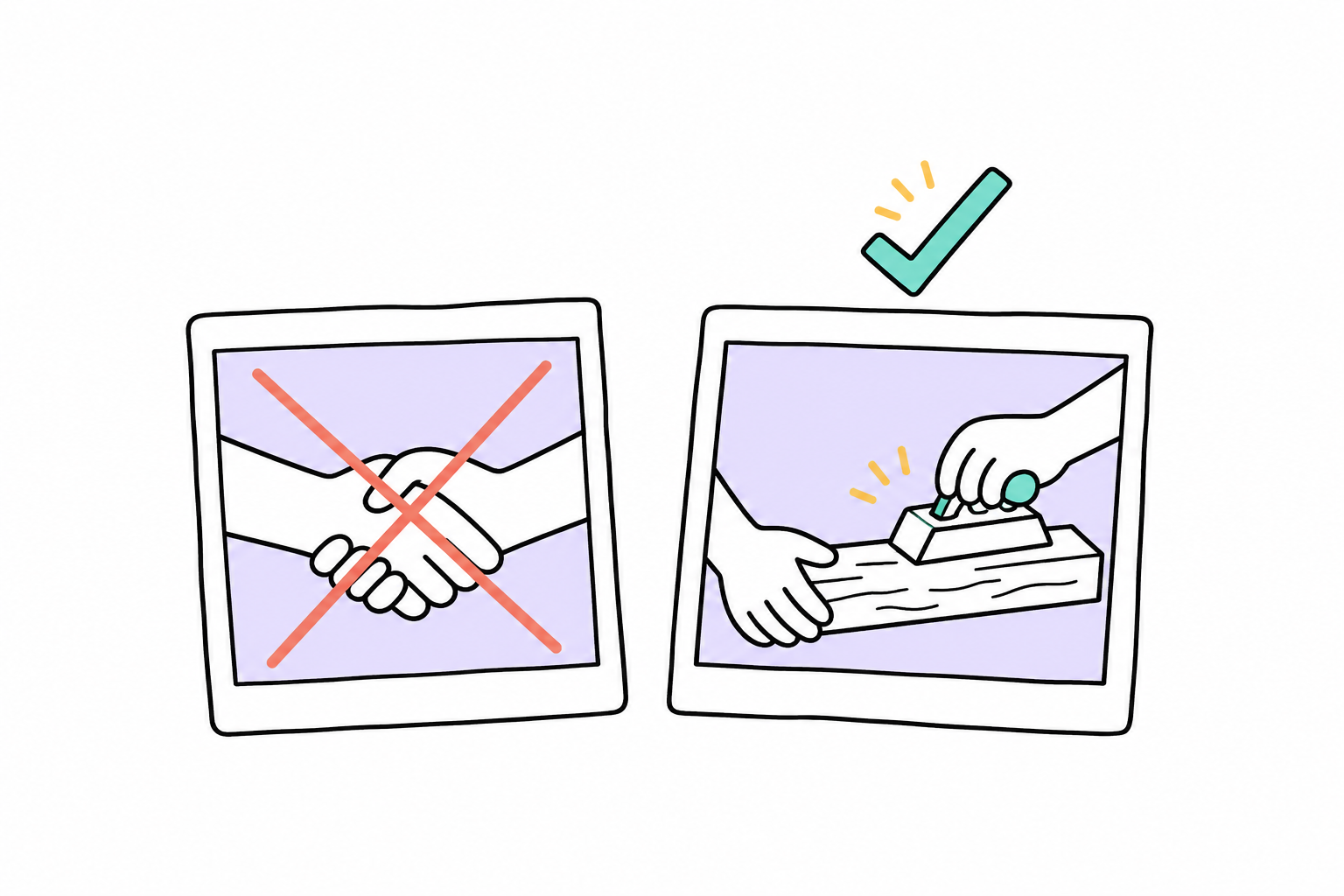
To illustrate their website, many businesses dip into a stock photo library: a handshake, a smiling team or a bright office. Before contacting you, the visitor looks for examples of your work, photos of your team or of the place where you’ll welcome them.
Visitors look closely at information-rich photos, such as those of your work, your team or your premises. They skim past those that only decorate the page, including generic stock portraits. A sharp photo taken with a recent phone can be enough to show a job or a product. Add a description for visitors who can’t see it.
Terms to know before you start
| Term | Meaning |
|---|---|
| Stock photo library | A website that sells or gives away photos anyone can use, such as Pexels, Shutterstock or Adobe Stock. The same photo often appears on many websites |
| Informative photo | A photo that gives useful information about a finished job, the team, the workshop or a product |
| Decorative image | An image that gives no information, such as a pattern, a texture or a mood illustration |
| Alternative text | The description of an image written into the page’s code. A screen reader reads it in place of the image |
| Screen reader | Software that reads a page’s text aloud for people who are blind or have low vision |
| Caption | The short text shown under a photo, visible to all visitors |
Tell useful photos apart from decorative images
Go through the photos on your website and sort them into two groups. The first brings together those that show the business: real work, the team, the premises or the products. In the second, put those that only decorate: a handshake, a lit light bulb or a smiling person who doesn’t work for you.
We base this sorting on the eye-tracking recordings that Jakob Nielsen, of the American firm Nielsen Norman Group, published in 2010. Participants looked at information-rich photos for a long time. They ignored the others, which were purely decorative, especially stock portraits of people with no link to the business1.
Nielsen doesn’t give the number of participants, and the only quantified example in his article concerns a single person1. These observations suggest a trend also noted in the 2019 tests described below, without allowing its extent to be measured. A decorative photo takes up space without telling the visitor anything.
Photos that show the business
A finished job
The team, each person named
The workshop
A product
Photos that only decorate
A handshake
A light bulb
A smiling person in a hard hat
A landscape
Replace stock portraits first
In tests carried out in 2019 with more than 70 people, mostly in the United States, Nielsen Norman Group gathered their reactions to company About pages. Some of these participants were as wary of stock photos as of corporate jargon2. The researchers described these reactions without quantifying them, so there’s no way to know what share of participants shared them.
Start with the business’s About page and replace its stock portraits with photos of your team. Under each portrait, give the person’s first name and job. Then move on to the decorative images on service pages and replace each one with a photo of the service carried out for a customer.
A visitor may recognize a stock photo they’ve seen elsewhere. A reverse image search lets you find the other websites that publish the same photo. The steps are in the chapter “Optimize your website’s images for Google” in the SEO guide.
Place each photo next to the passage it illustrates
Put each photo next to the matching paragraph. For example, place the photo of the remodeled bathroom next to the paragraph on laying the tiles, and the owner’s portrait next to his background. Add a short caption with what the photo doesn’t show, such as the town, the year or how long the work took.
On a portfolio page, present each job as a small card: a main photo, its caption and two or three sentences about the customer’s request. A before photo and an after photo, taken from the same viewpoint, show what your work changes. To our knowledge, no study has compared where photos are placed on a tradesperson’s website, so this advice comes from our experience.
Example of a job card on a portfolio page
The photo of the finished job
Chenôve, 2026, six days
A walk-in shower in place of the bathtub
The customers wanted to replace their bathtub with a curbless shower. We laid large-format gray tiles on the floor and walls.
Describe each photo for visitors who can’t see it
For each informative photo, write alternative text that gives a blind visitor the information the photo gives everyone else. On a portfolio page, this text says what was done and where: “Bathroom remodeled with a walk-in shower in gray tiles, in Chenôve.” For a before-and-after pair, describe each state: “The bathroom before the work,” then “The same bathroom remodeled.”

Mark images that add nothing, such as a pattern or a texture, as decorative. A decorative image has empty alternative text, which lets a screen reader skip it without announcing it.
These two rules come from accessibility standards. In France, criterion 1.1 of the RGAA, the government’s accessibility standard, requires a text alternative for every image that carries information. Under criterion 1.2, a decorative image must be ignored by assistive technologies3.
Internationally, the W3C, the body that sets web standards, imposes the same requirements in success criterion 1.1.1 of its Web Content Accessibility Guidelines (WCAG)4.
Google reads alternative text too. The chapter “Optimize your website’s images for Google” details the alternative text mistakes that Google may treat as spam.
Example: a tiler in Dijon, France
On our test website, we built the “Our work” page of an imaginary tiler in Dijon, before and after the changes. It brings together flaws that are common on tradespeople’s websites.
The page mixed stock photos with uncaptioned jobs
The page showed twelve photos. Five came from a stock photo library: magazine bathrooms and a handshake. The other seven showed real jobs, with no caption or alternative text. For each of them, a screen reader could announce the file name, such as “IMG_2041.”
The tiler keeps his job photos and adds before-and-after comparisons
He removes the five stock photos and keeps the other seven. For three bathrooms, he takes two shots from the same viewpoint, one before the work and the other after. Each job becomes a card with its photo, its caption and two sentences about the customer’s request.
The tiler captions and describes each photo
Under each photo, the tiler gives the town, the year and how long the work took: “Chenôve, 2026, six days.” He writes alternative text for each one and marks the tile pattern in the page background as decorative. A screen reader now announces “Bathroom remodeled with a walk-in shower in gray tiles, in Chenôve.”
Before
“IMG_2041”
The screen reader announces the file name.
After
“Bathroom remodeled with a walk-in shower in gray tiles, in Chenôve”
The screen reader announces the alternative text.

Review your website’s photos in three steps
Start with the pages that get the most visits before moving on to the others.
- List the photos on your website page by page. For each one, note whether it shows the business or only decorates. Move on to the next step when you’ve sorted every photo.
- First replace stock portraits with photos of your team. Then replace the decorative images on service pages with a photo of that service carried out for a customer. If you don’t have a photo yet, remove the stock image. This step is done when no stock portrait appears on the website anymore.
- In each informative photo’s alternative text, describe in one sentence the essential information it gives. Mark images that add nothing as decorative. Check that no image is left without one or the other.
You’re done when…
Every photo on your website shows the business, its products or its work, except images marked as decorative. Every informative photo has alternative text that describes what it shows.
Your website no longer shows any stock portraits.
If it doesn’t work
If you have no photos of your work, photograph your next job or your next order in daylight. In the meantime, you can publish the page without an image.
If a customer doesn’t want their home to appear on your website, photograph a detail of the work, such as a grout line or a cut. Frame it with nothing that would make the house recognizable.
Photograph each new job
Add photos of your new jobs or new orders to your portfolio page. Your future customers will be able to see concrete examples of your work. Reviews and qualifications, covered in the next chapter, complement these photos to reassure your visitors.
Previous chapter: Make your website’s text readable
Next chapter: Build trust on your website
Sources
- ↑ Jakob Nielsen, “Photos as Web Content,” Nielsen Norman Group, October 31, 2010, reviewed on August 13, 2026.
- ↑ Anna Kaley and Jakob Nielsen, “About Us Information on Websites,” Nielsen Norman Group, May 26, 2019.
- ↑ DINUM, “RGAA 4.1.2, critères et tests” [RGAA 4.1.2, criteria and tests], criteria 1.1 and 1.2, accessed on November 16, 2026.
- ↑ W3C, “Web Content Accessibility Guidelines (WCAG) 2.2,” success criterion 1.1.1, Recommendation of December 12, 2024.